For music teachers
One place for every student's music
This is a practical setup guide for piano teachers and private music studios. You'll open a score, use a teaching group, assign parts when the music needs it, and use Score Settings to check private and shared annotation layers.
A note from Musync
From one musician to another
Musync started after an outdoor performance during COVID, when the wind scattered the sheet music and brought everything to a stop. As a father-and-son team, and as musicians who know the stress of missing pages and the wrong copy, we built Musync to make music easier to organize, practice, and share. If you teach piano or run a small studio, this page is meant to feel like a colleague walking you through the first setup.
Tutorial
Watch once, then follow the steps below
The video gives you the landscape walkthrough. The numbered guide below is the quick reference to keep open while you set up your first student score.
Setup flow
Set up your first student score
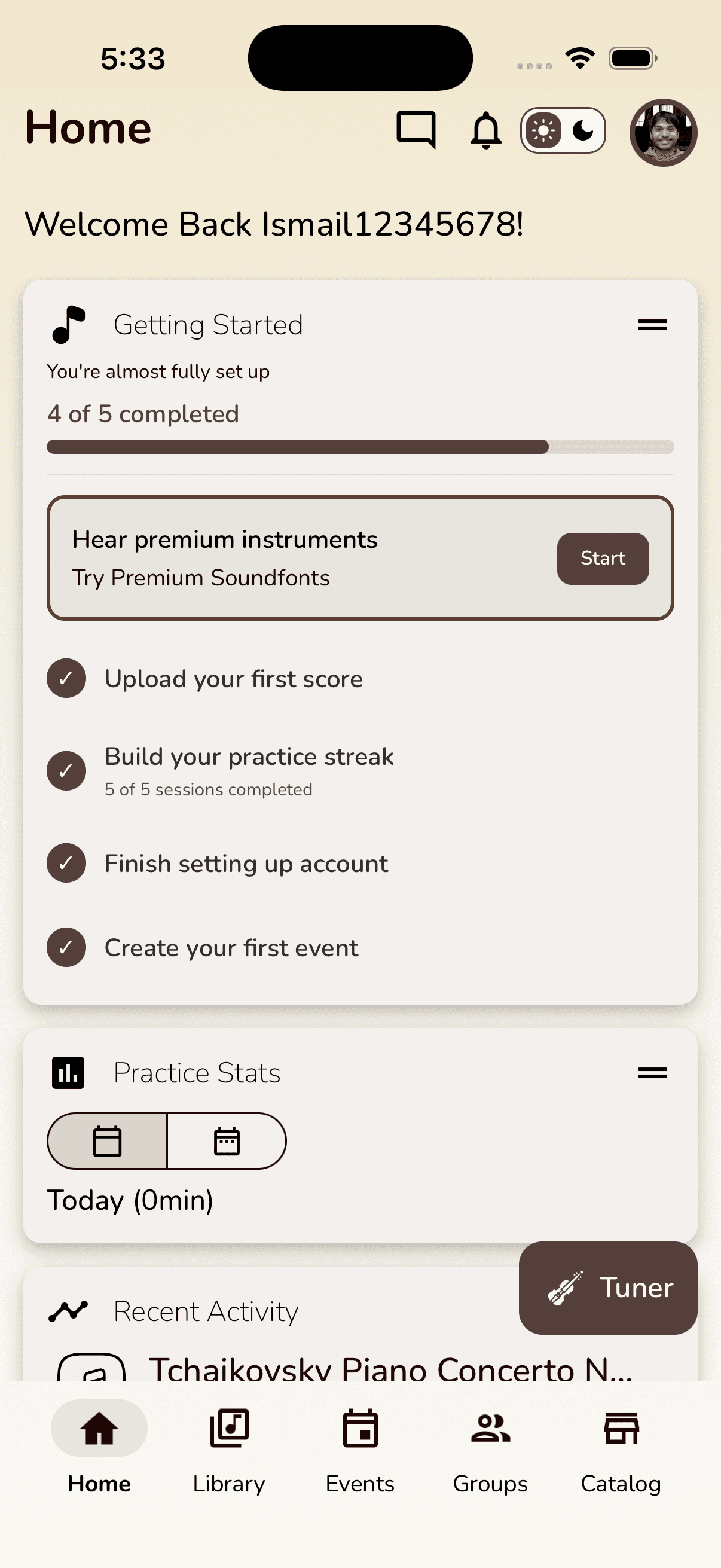
Follow these steps in order. Each screenshot shows the actual place in the app where the teacher setup happens.
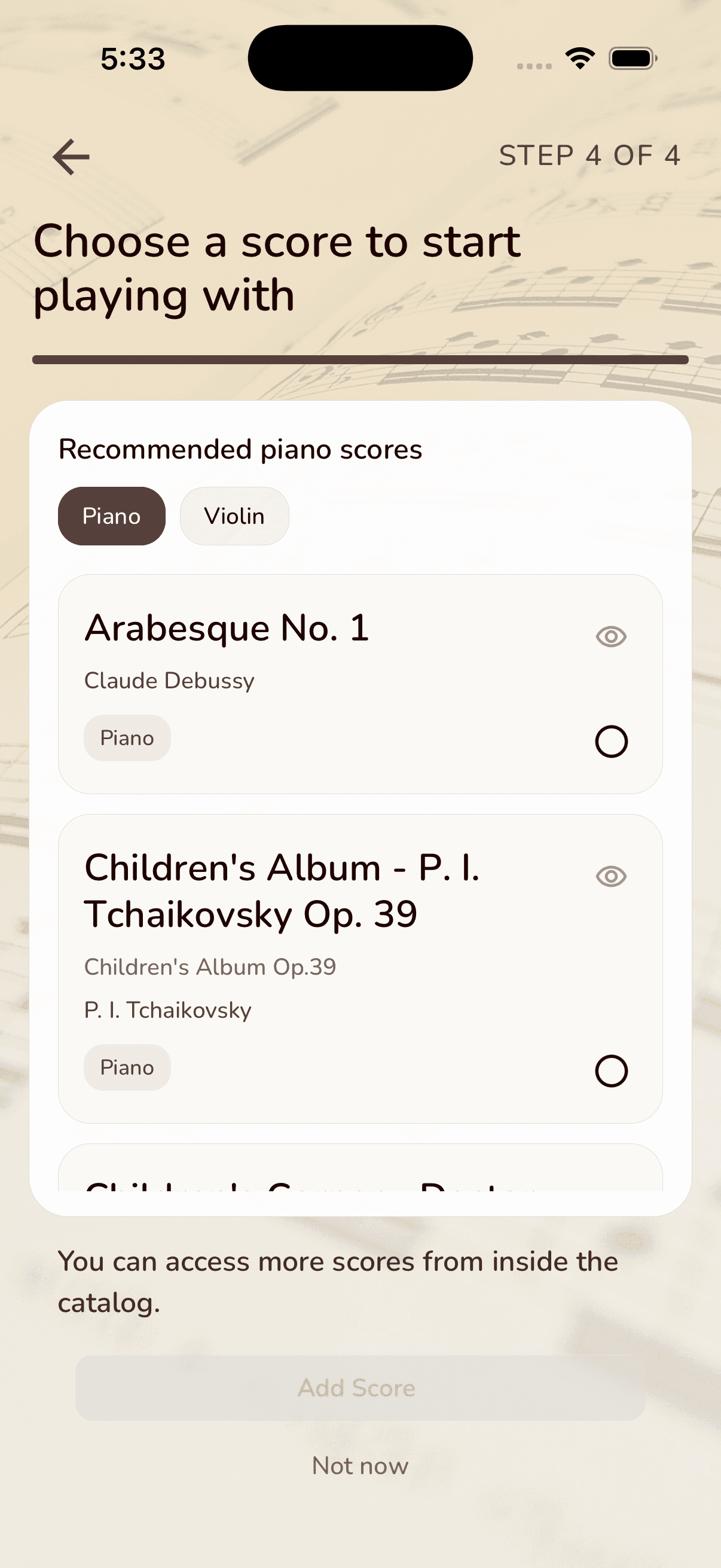
Step 01 / Choose a score
Start with the piece your student is already learning.
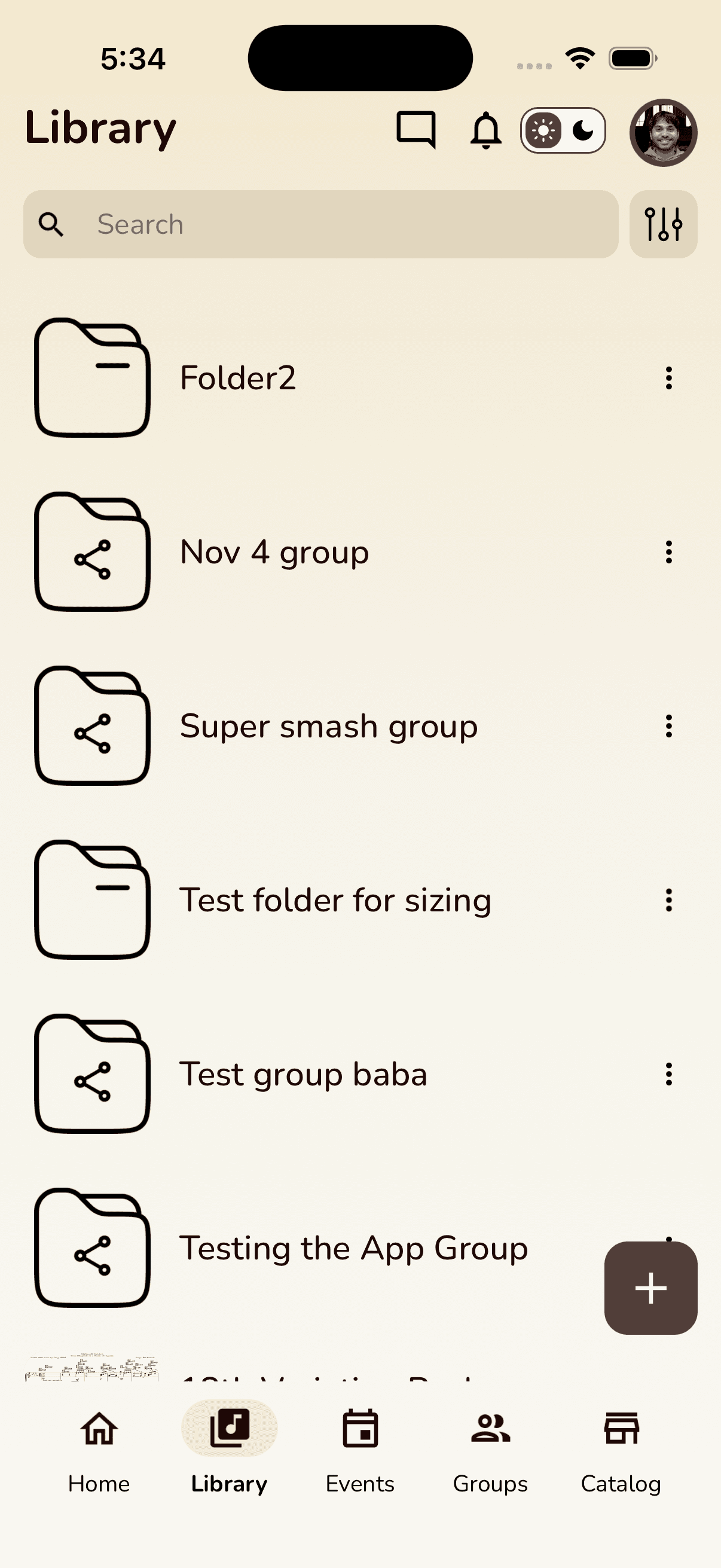
Pick a score from the catalog, upload your own, or open something you already have in Musync. For a piano studio, this can be a method-book piece, a recital work, a duet, or a score you want every student to practice from the same way.
The goal is simple: no more wondering which PDF, screenshot, or paper copy a student has at home.
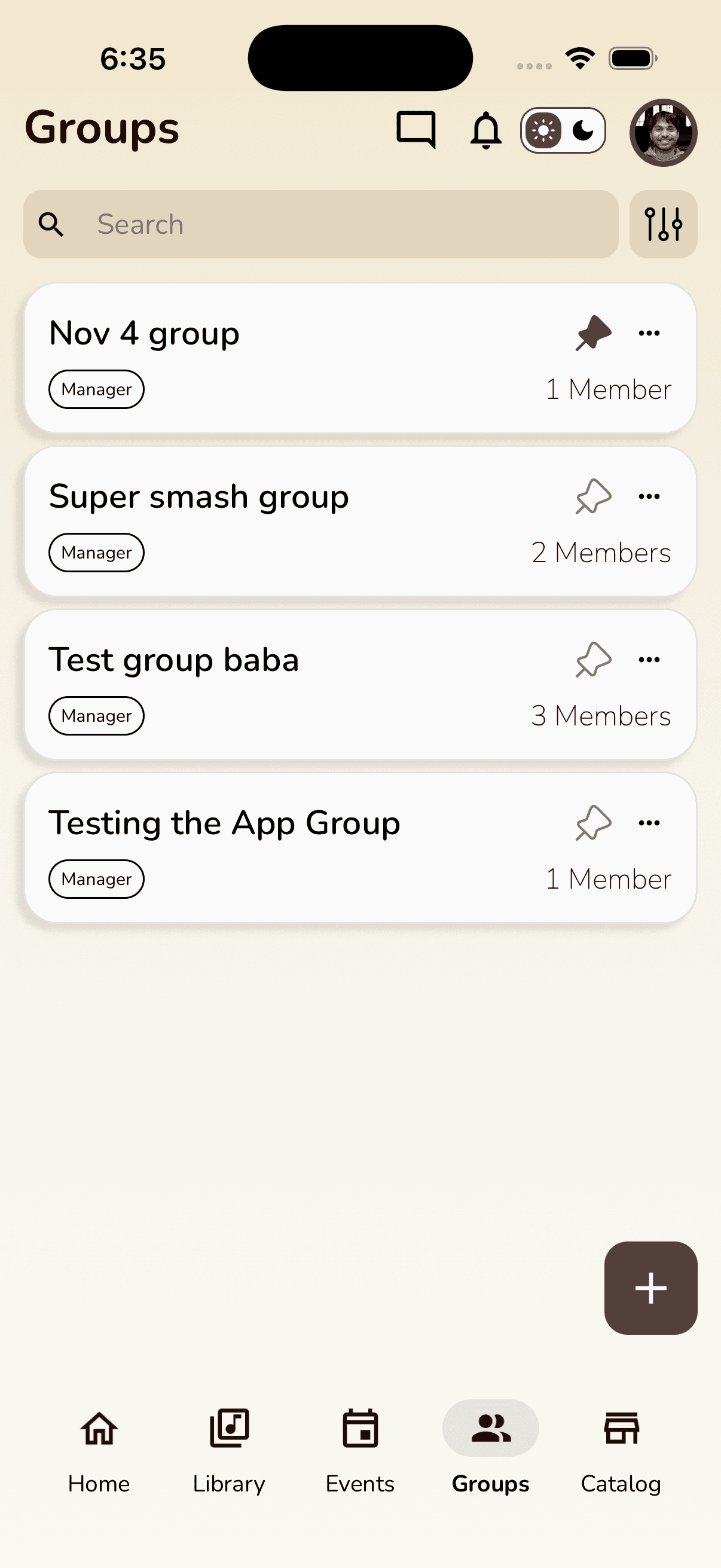
Step 02 / Use a teaching group
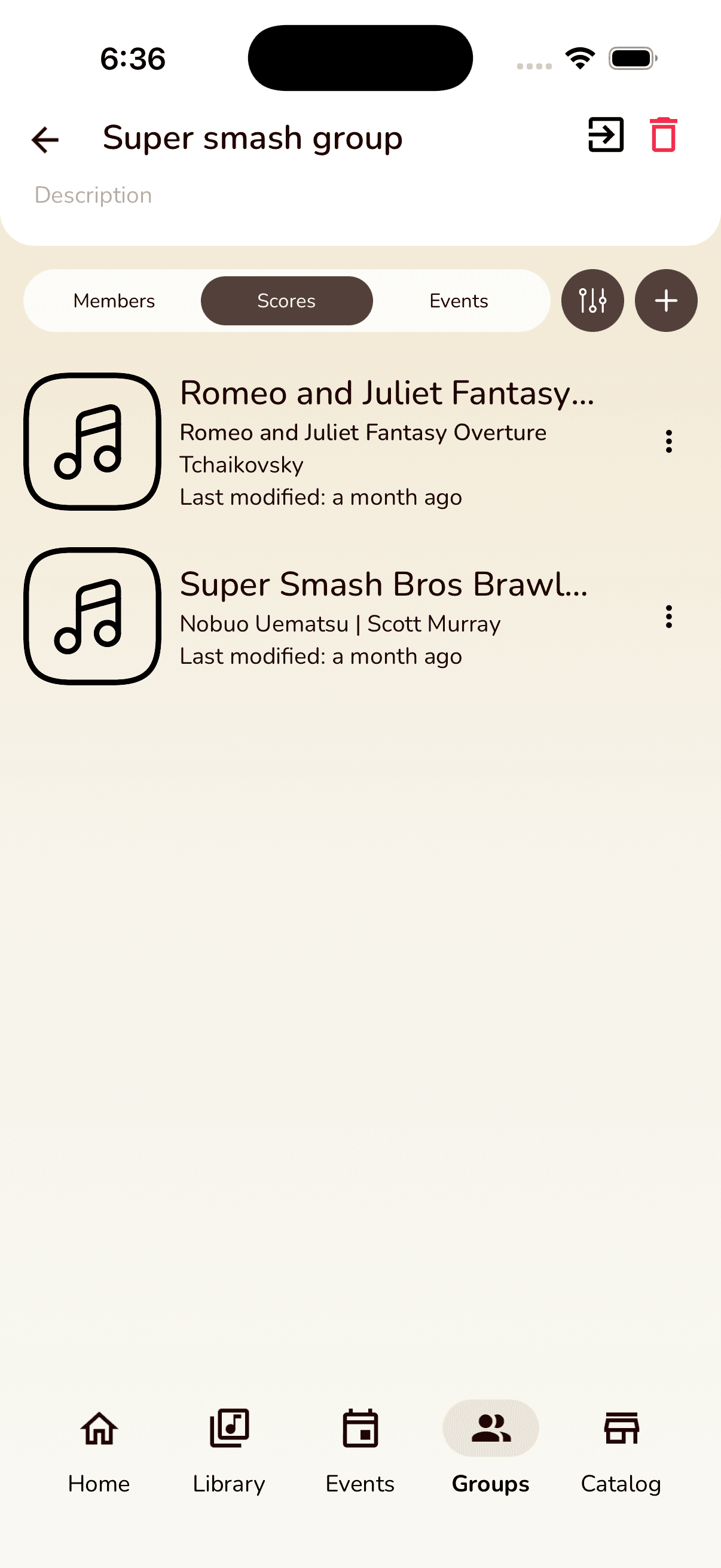
Open the score from a group where you are the manager.
Groups are useful for a private studio, a small class, duet partners, or any student set that needs shared music. In this walkthrough, the teacher is the group manager, which is what makes the teacher-only controls available.
If you want shared parts or public markings, begin from the group score instead of a personal copy.
Step 03 / Assign parts
Match the right part to the right student.
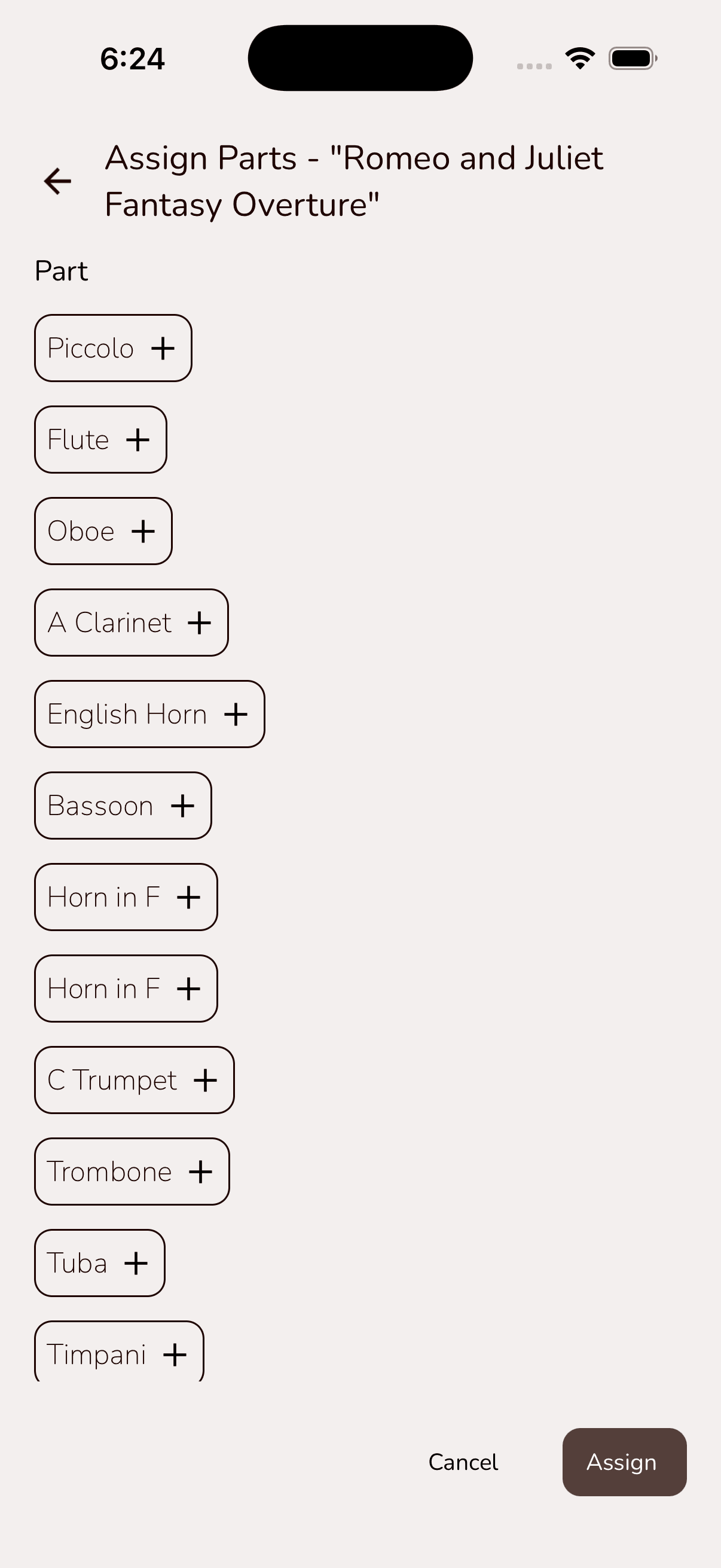
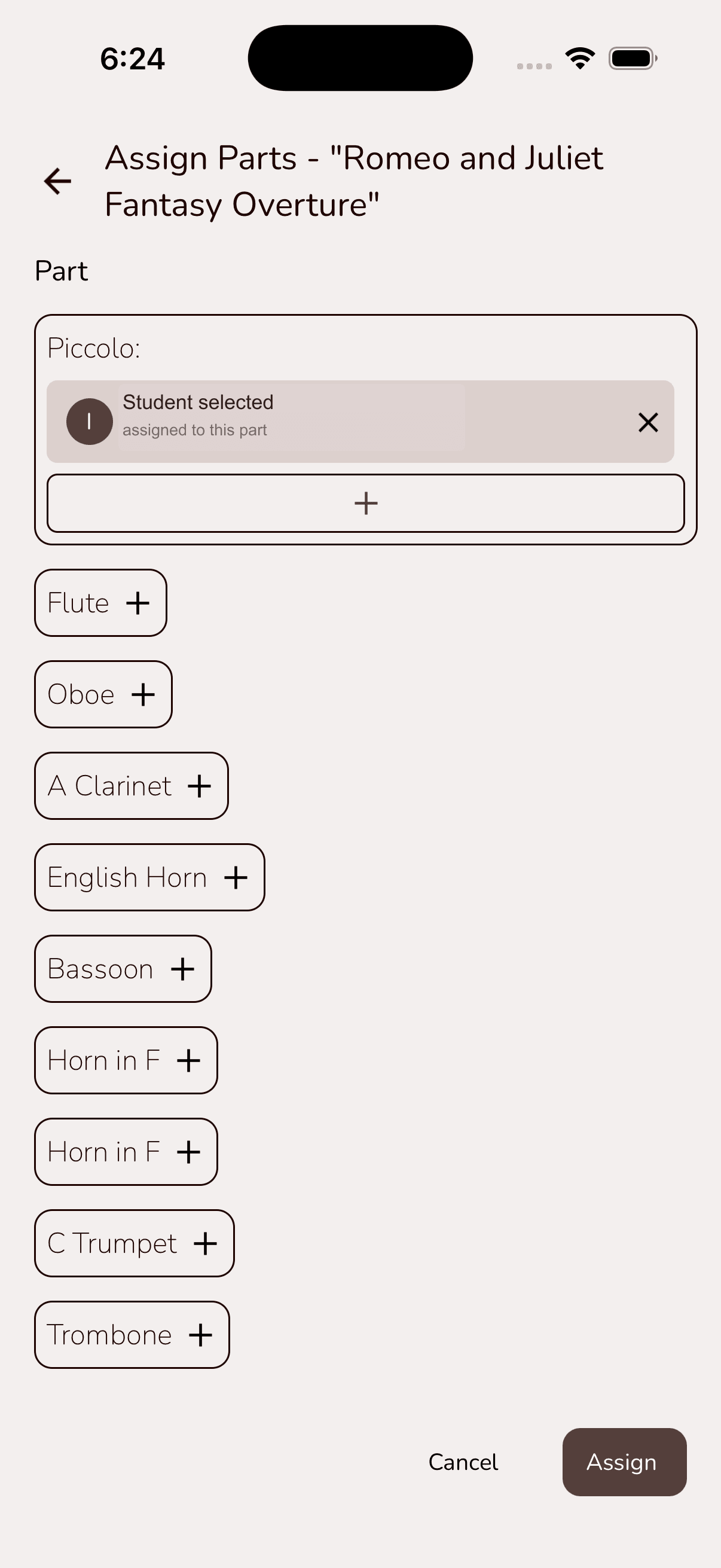
If you are teaching solo repertoire, you can skip this step. For duet, chamber, or multi-part scores, open Assign Parts and choose the student for each line. Musync reads the score parts so you can work from the music itself instead of rebuilding the assignment by hand.
This is the digital version of the lesson handoff: each student opens the score and knows exactly what to practice.
Step 04 / Open the score
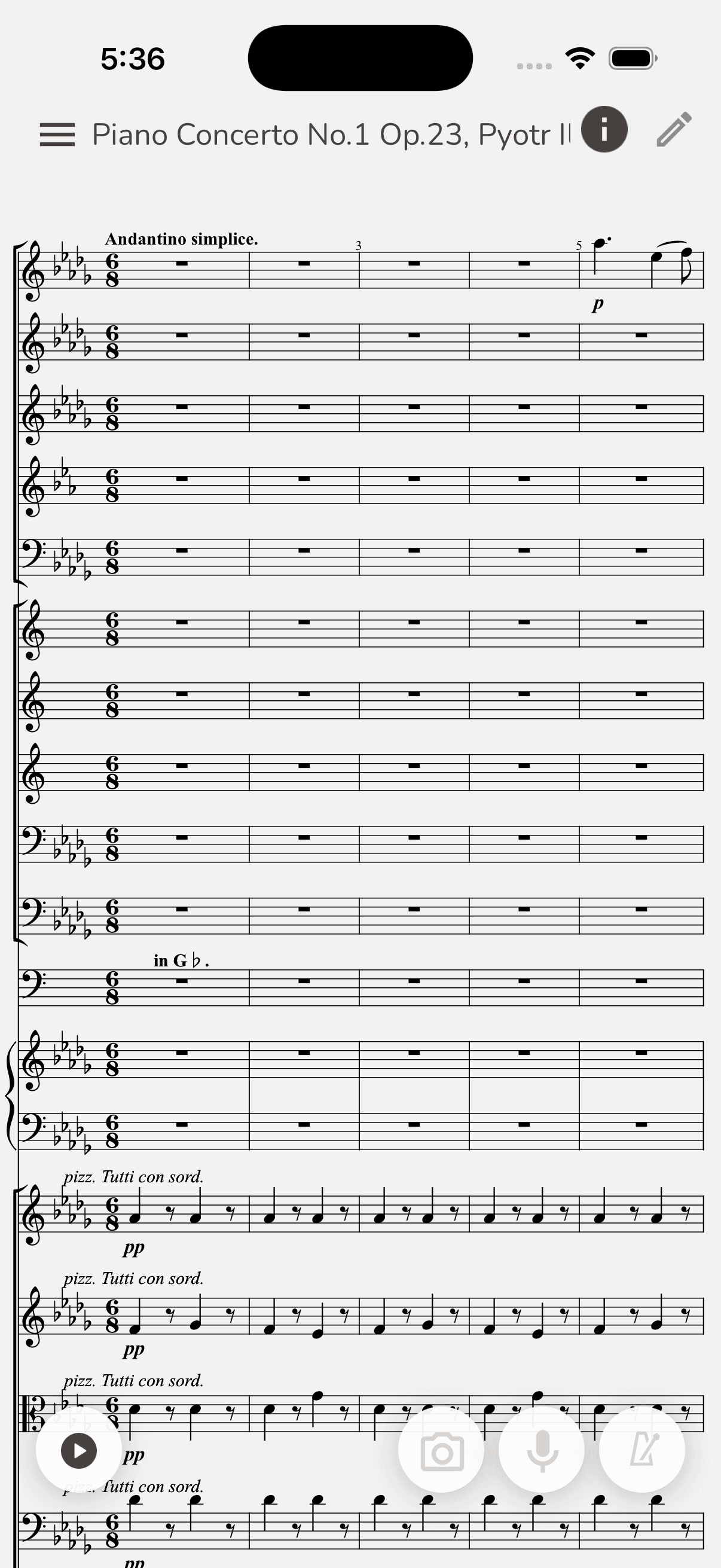
Check that the score is ready to practice from a phone.
Students can open the same MusicXML-based score on their own device. You can review the layout, playback, and score tools before you send them to practice between lessons.
A student does not need to wait until the next lesson to find the right page or the right copy.
Step 05 / Choose visible layers
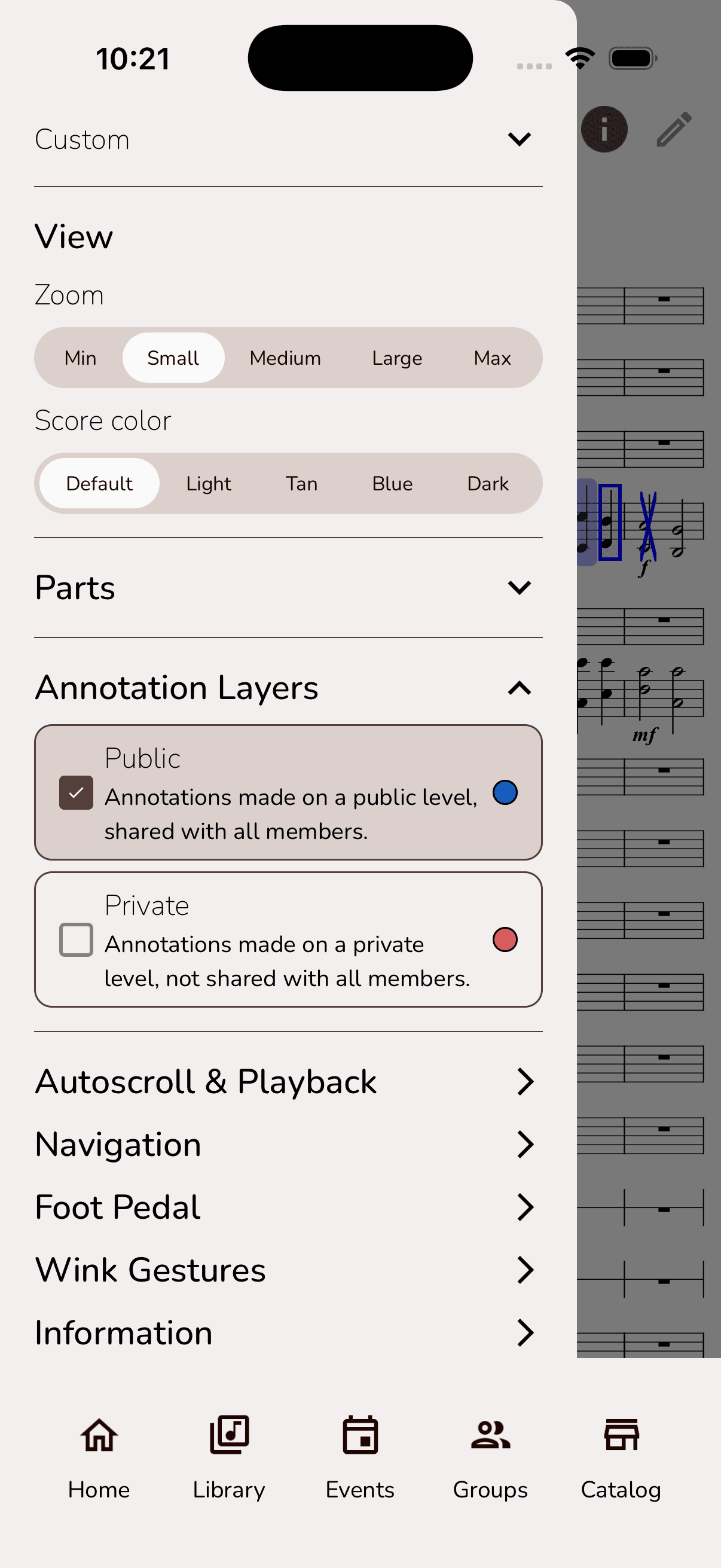
Use Score Settings to decide which annotation layer is visible.
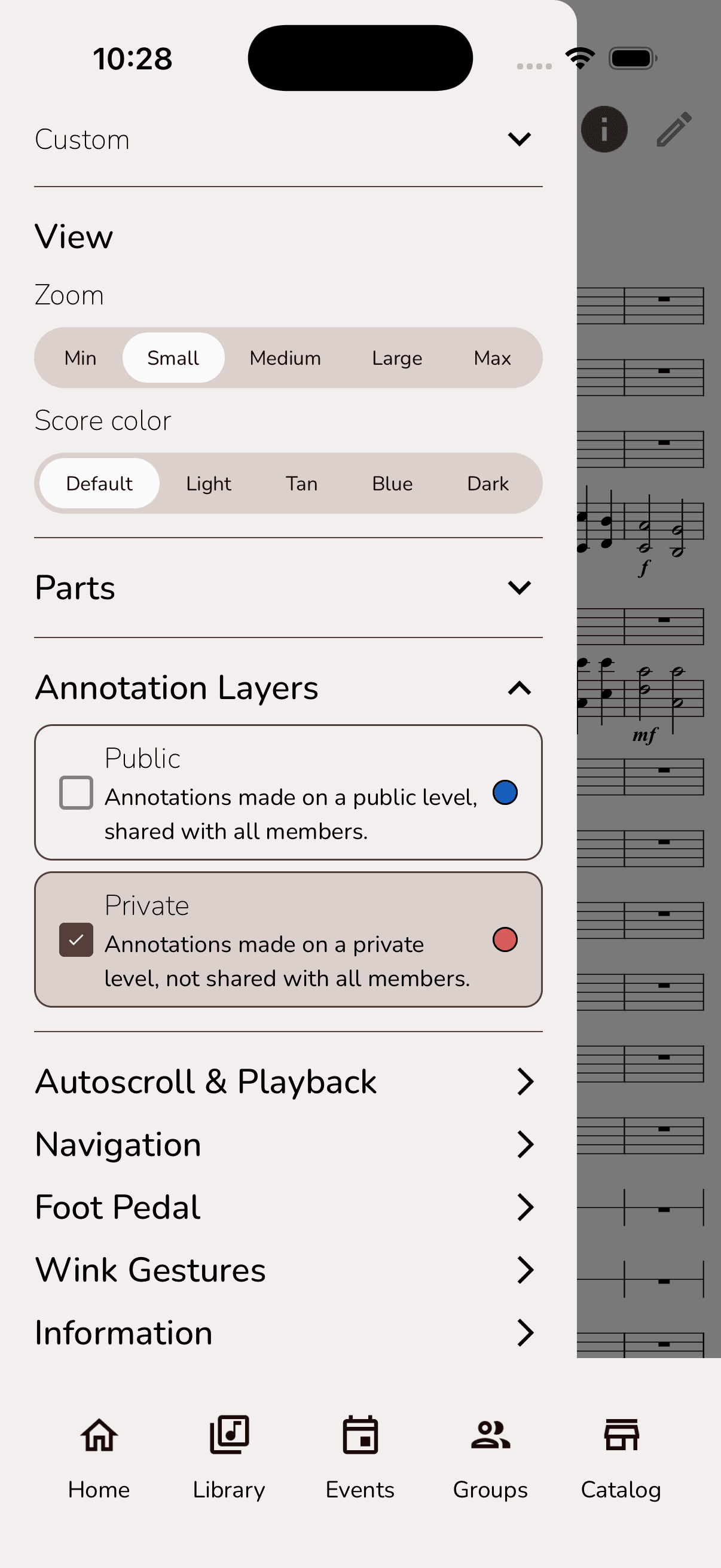
Open Score Settings, expand Annotation Layers, and choose whether you want to see Public, Private, or both. This is the layer visibility control: it changes what markings appear on the score without changing the music itself.
This is the cleanest way to check exactly what a student can see versus what is just for your lesson prep.
Step 06 / Compare the score
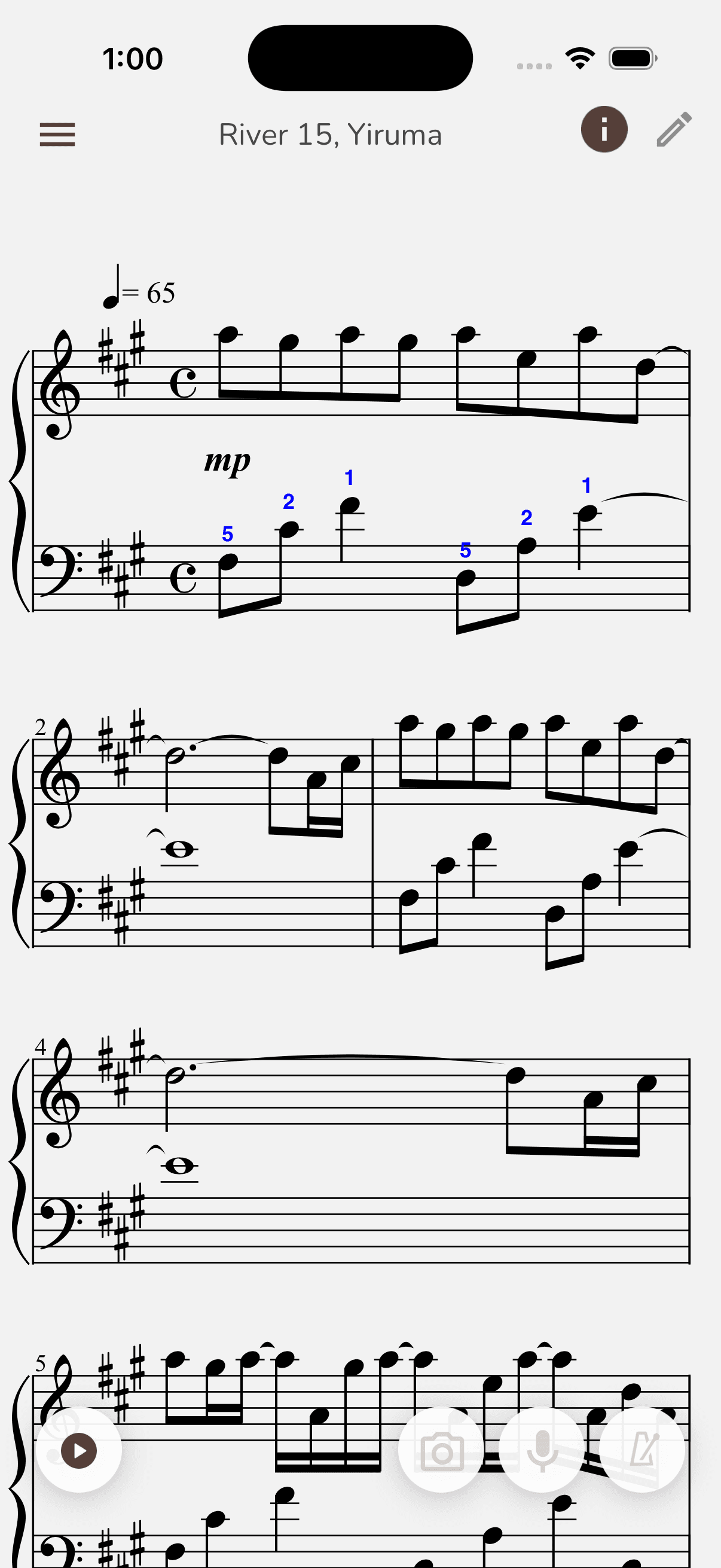
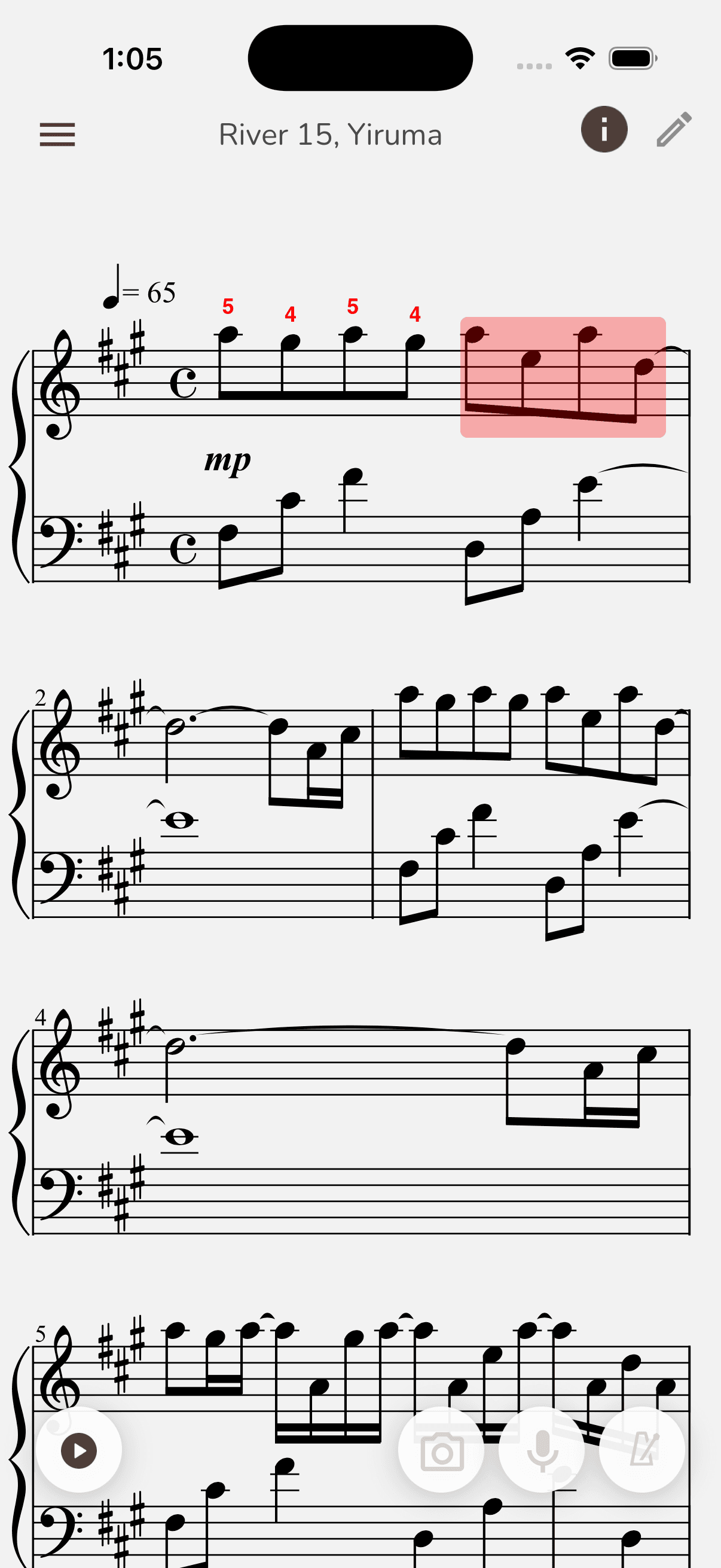
Check the score after toggling each layer.
After changing the Annotation Layers setting, return to the score and confirm the visible markings match the layer you selected. The screenshots here use a group score so the manager-only layer controls are visible; use the same check on your piano solo, duet, or studio score.
Think of it like flipping between your copy and the student's copy before the lesson ends.
Music teacher offer
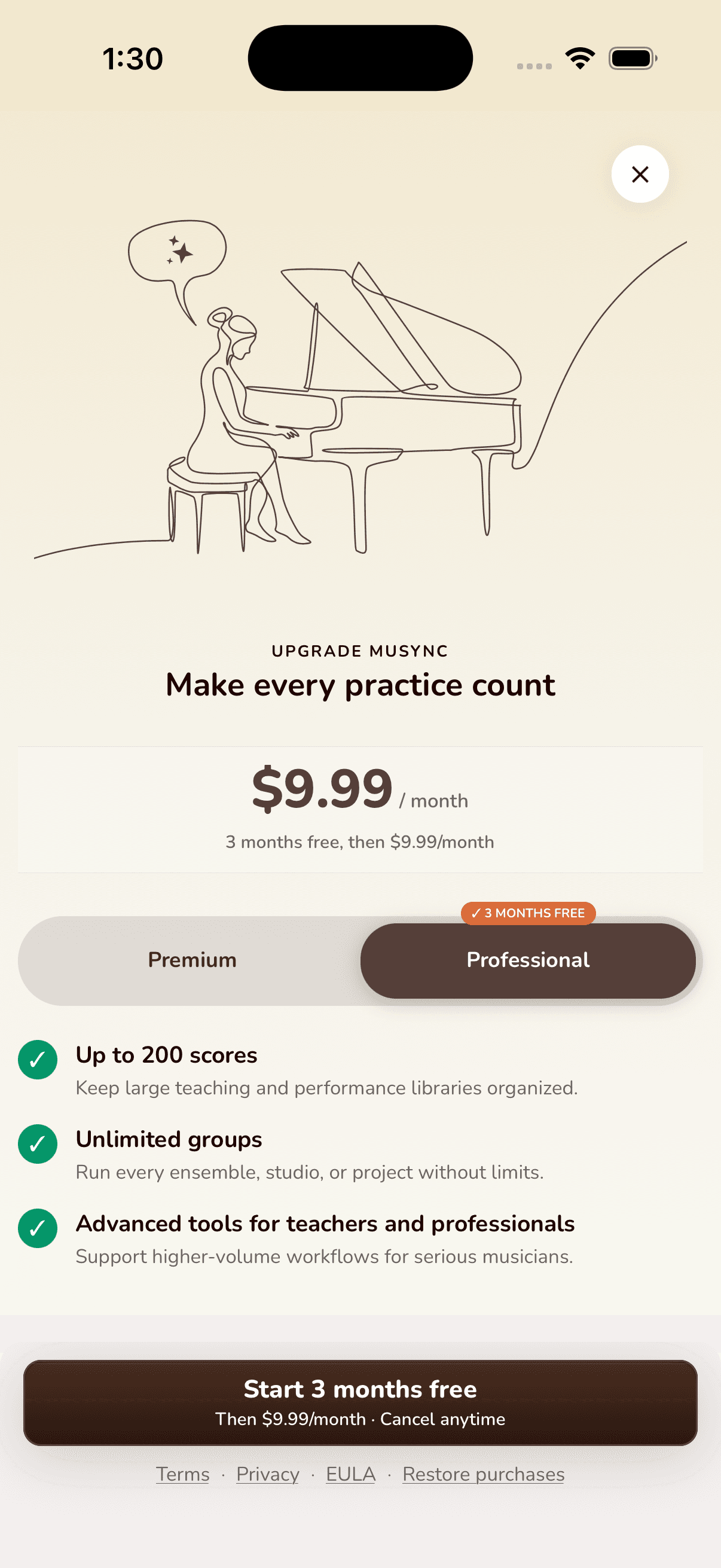
Redeem TEACHER3FREE for Professional
This code is specifically for music teachers. It gives you 3 months free on the Professional plan, so you can try the score, group, part assignment, and annotation tools with your own students.
- 1. Open Musync, go to your plan screen, and tap Have a promo code?
- 2. Type TEACHER3FREE and apply it. Musync may display it back as Teacher3Free.
- 3. Choose Professional when the card shows 3 months free, then finish the store confirmation.
If anything looks different or the code does not apply, send us a note and we will help you get set up.
What this solves
Less paper chasing between lessons
Musync is at its best when it removes a small piece of lesson friction: the wrong file, the missing page, the unshared marking, or the student who is not sure what to practice.
- A new student gets one clear starting score instead of a scattered mix of links and files.
- A studio group keeps students, repertoire, assignments, and shared markings together.
- Duet or multi-part music can be assigned without a separate message thread.
- Private prep notes stay separate from the markings students need to see.
You are set up to start using Musync
Download the app, sign in, and start with one score for one student. If you want help getting repertoire into Musync, choosing a studio workflow, or setting up group scores, reach out to the Musync team or to me directly.